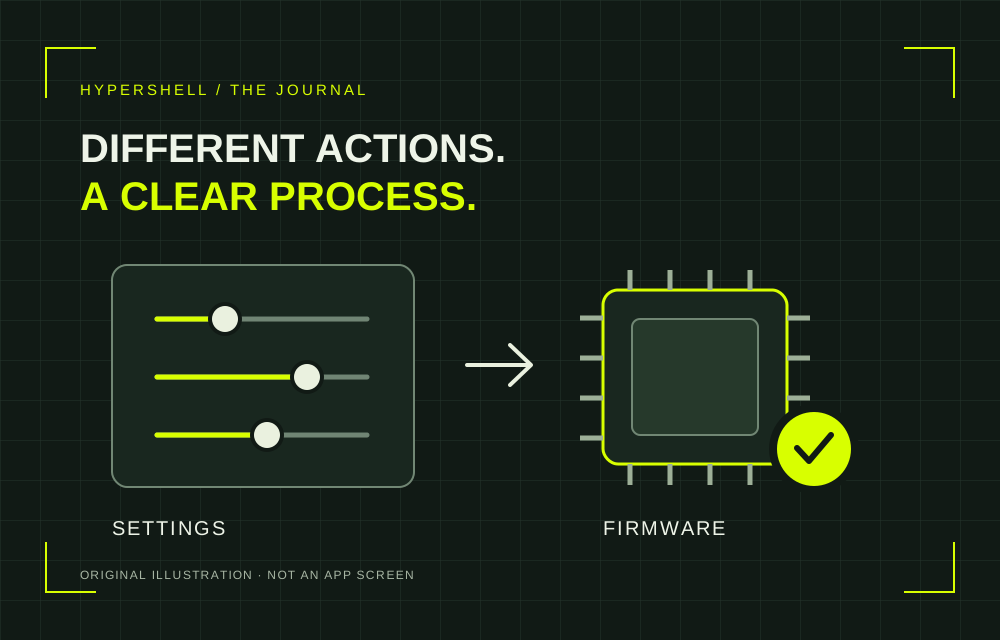
Know what you are about to change
Mode selection, assistance level and a new-firmware notification may appear close together in Hypershell+. Distinguish the actions before tapping. Settings define your chosen operating parameters; firmware is the software inside the exoskeleton. Updating the phone app should not automatically be treated as updating the device.
The official Hypershell+ overview lists mode control, personal settings and firmware updates separately. If you simply want to adjust a familiar parameter, read its description first. Do not start another procedure just because its button stands out.
Read what this particular release changes
Hypershell recommends reading the release notes in the app: they describe new features, fixes and improvements in the specific release. This is more reliable than applying promises from an old review or news about another model. If the description leaves questions, ask support.
Our editorial suggestion: note the model, current firmware version and settings you use before starting. A brief record helps you ask a specific question if something looks unfamiliar afterwards. It is not a backup or a guarantee of data recovery.
Set aside time when you are not walking
The X Series v5.1 manual, pages 42–43, requires the phone to have a network connection and a Bluetooth link to the exoskeleton. Do not close the app or send it to the background during the update. Check your version's battery and positioning requirements before starting. The manual warns of possible restarts and lever movement, so keep the area around the device clear.
The manufacturer also warns against using the exoskeleton during an update: it may temporarily stop responding. Leave it powered on and do not operate it until the process finishes. Avoid starting when your group is setting off or you need the phone for navigation.
Verify completion, not just the progress bar
According to the support checklist, verify that the updated version is displayed, the update prompt has disappeared, and the device operates normally without error messages. The manual also calls for restarting after a successful update. Rely on the app's confirmation, not how long you have waited.
If the update ends with an error, follow the on-screen instructions. If the problem repeats, save the exact message and contact support. Avoid changing several parameters at random: that makes it harder to explain which action preceded the problem.
A reset has different consequences
A factory reset is not another name for an update. Manual v5.1 warns that a reset is irreversible and removes personal preferences, paired devices and app data. Do not use it as a routine “try again” button. First understand the fault and the consequences of the proposed action. A calm check brings more clarity than a series of hurried taps.